ReproScripts Security Guilloche background designer plugin for CorelDraw
- create four types of guilloche backgrounds
- easily manage transformations and line parameters
- regions of curve density variation in fill curves
- compensate for line deviations at edges
Background guilloche grids are a popular design option for a wide variety of products. The Guilloche background designer plugin allows you to easily create a variety of grids by setting simple parameters for base and fill curves, as well as their transformations. You can quickly create a variety of background grids without painstaking manual work and generate them in CorelDraw as vectors in seconds.
Plugin window interface
The plugin's main window interface contains a list of presets, initially populated with several sample backgrounds 1. You can create your own backgrounds and save them to this list for future use.
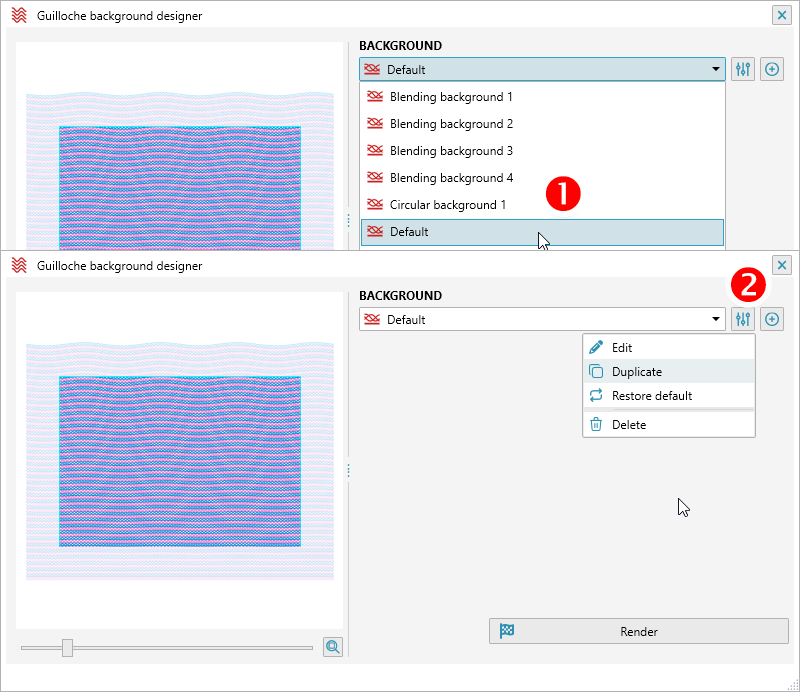
To change the design of a preset background , you can use the Edit/Duplicate commands from the menu to the right of the list 2. You can also immediately create a new background with basic parameters by clicking the button.
Editing a background
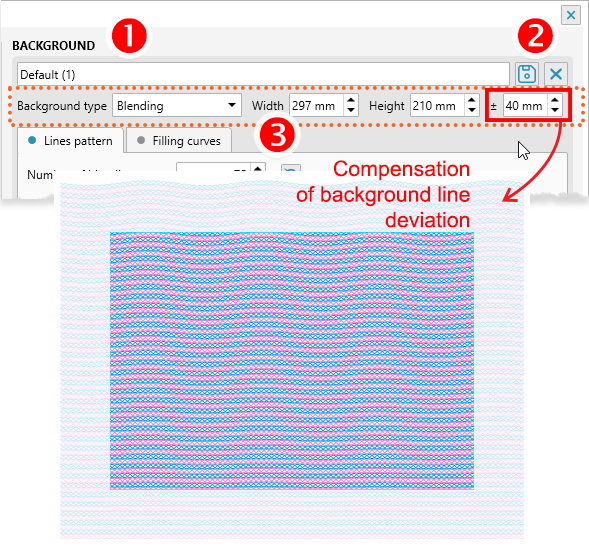
After opening a background preset for editing, you can specify a new preset name 1 and save your changes, or exit editing mode without saving your current changes 2.
For any background, you must specify general parameters 3 — its type, dimensions, and edge allowance. The edge allowance size determines the additional margin relative to the specified dimensions. It compensates for uneven background curves at the edges to achieve a uniform fill within the desired boundaries.
Depending on the selected background type, the logic for constructing base and fill curves changes, and, accordingly, the parameters that can be configured.
Blending background
In this type of background grid, base curves are calculated as a smooth transition from the lower base to the upper base. The space between the bases is filled with curves, the parameters of which are configured separately. Baselines can be made visible or hidden.
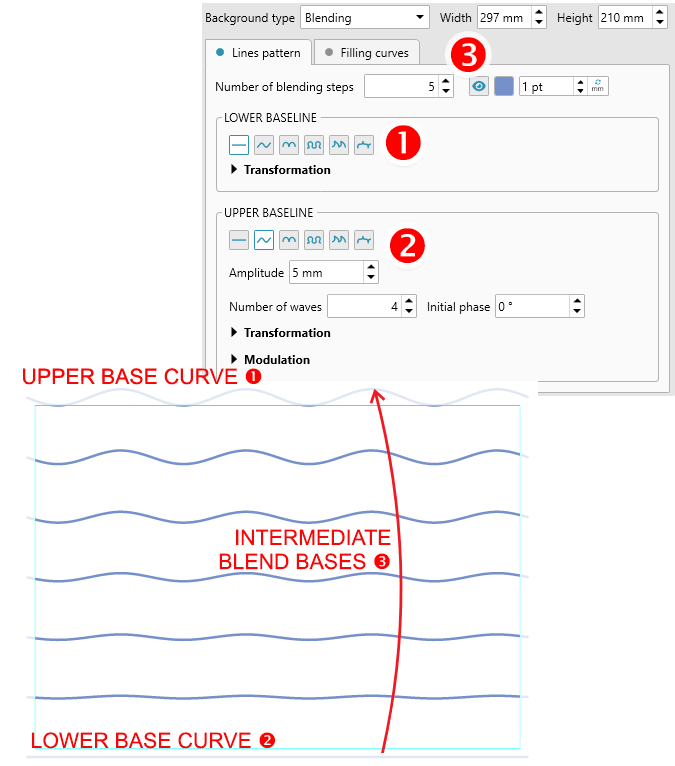
The parameters of the upper and lower baselines are determined by the curve type and are described in detail on the Math Curve Maker plugin page. In the figure, the lower baseline is a simple straight line 1, while the upper baseline is a 5mm-high sine wave with 4 waves 2. Five transition steps are defined between the upper and lower baselines 3, at each of which the plugin calculates intermediate parameters to smooth the transition.
Fill curves
The space between all calculated intermediate baselines can be filled with multiple curves with different parameters. This allows you to create a variety of unique background grid patterns.
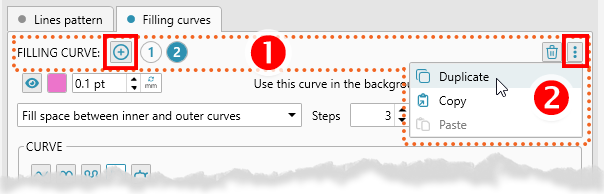
You can add up to 10 curves by pressing the button. You can switch between curves by clicking their index 1. To the right, under the button with three dots, is a menu 2 for additional operations where you can duplicate a curve, which is convenient if you need a slightly different curve from the current one. You can also copy and paste curves to and from memory, allowing you to transfer curves between presets if needed.
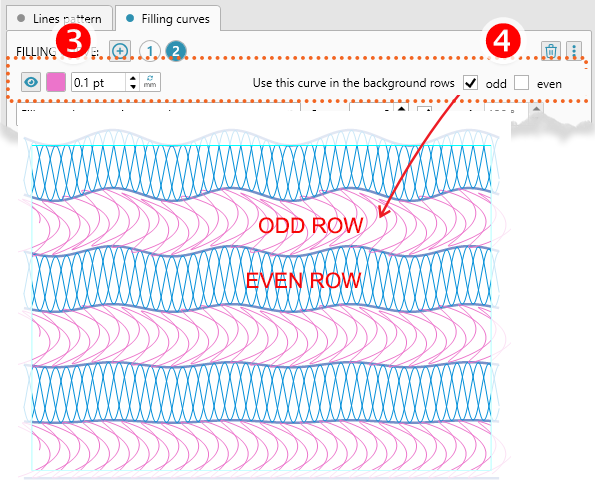
For each line, you can set the color, thickness, and visibility 3. You can also specify whether the line should appear at every transition step or only at odd/even steps 4 — allows you to create grids with alternating patterns.
Each curve supports a full set of parameters depending on its type. More information on how to configure each curve type, or add wave modulation to create zones with higher or lower wave density, is available on the Math Curve Maker plugin page.
The plugin supports two curve modes: fill and blend.
Curves fill Mode
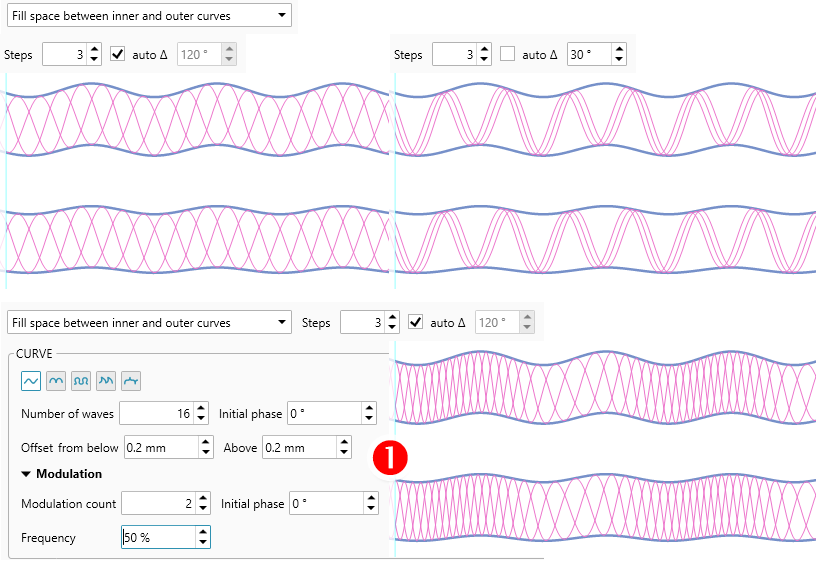
In this mode, the curve waves will touch the outer and inner baselines. The number of steps determines how many curve duplicates will be placed. You can also specify an offset in degrees for each curve. With the automatic value, the offset will be calculated so that all curves evenly fill the entire space. Manual offset values allow you to achieve various visual effects.
Curve parameters are described in more detail on the Math Curve Maker plugin page. The amplitude parameter is missing, as the height of the fill curve is calculated based on the distance between the upper and lower baselines. Using the modulation settings 1, you can achieve looser and denser zones of the curve's waves.
Curves blend Mode
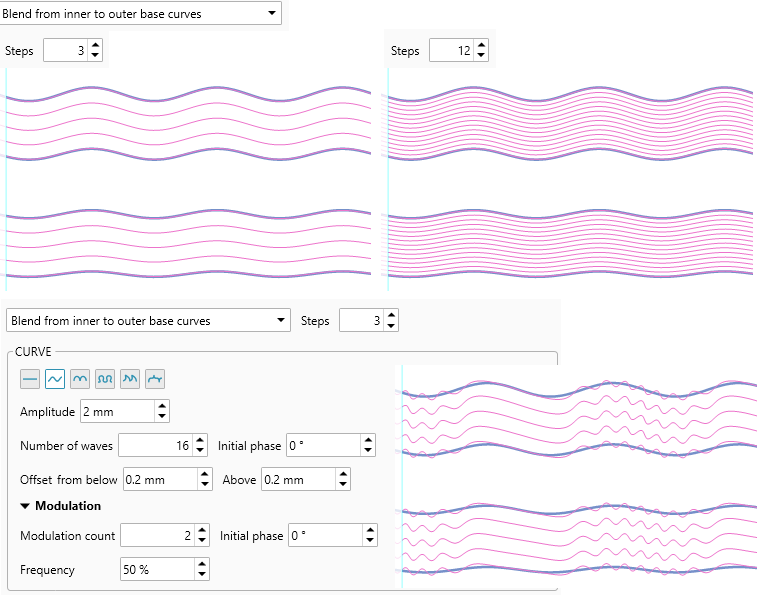
In this mode, the shape of the fill curve will smoothly change from the inner to the outer baseline. The number of steps affects the distance between the lines. The shape of the fill curve can be further adjusted using parameters. If a line is selected, you will achieve a uniform morphing of the shape from the lower to the upper baseline.
For the wave curve, you can also set modulation parameters to create zones of higher and lower wave density.
Transforming background
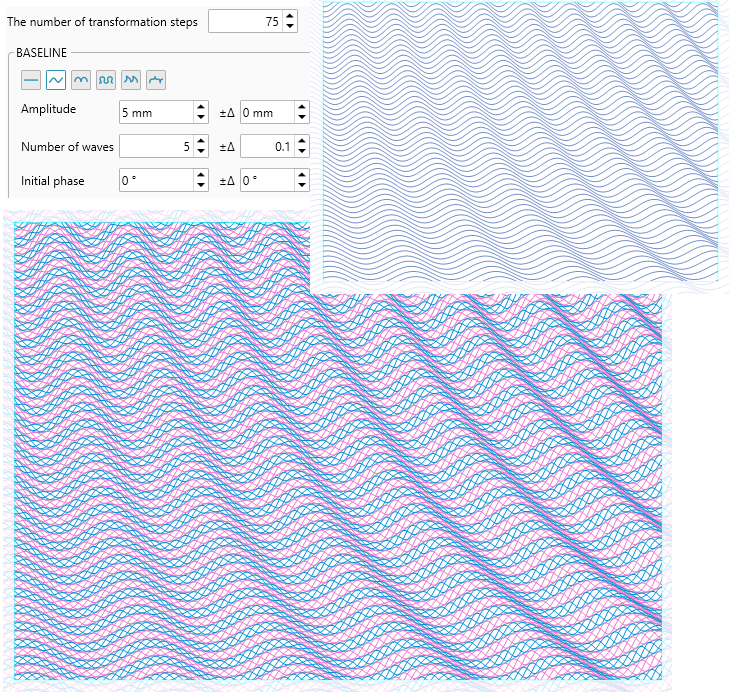
The second type of background is transforming. Here, there is only one base curve, but any of the parameters can increase or decrease at each step by a specified amount.
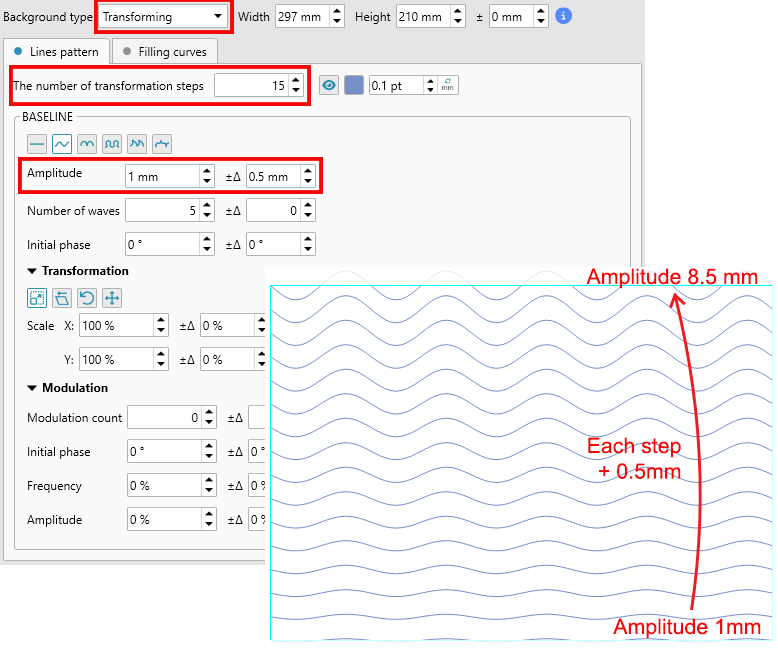
For example, if we select a sine wave with an amplitude of 1 mm as the initial base and set it to increase by 0.5 mm at each step, then after 15 steps The amplitude will reach 8.5 mm.
Working with curves that fill the space between baselines is described in detail above for the blend layer. You can create up to 10 fill or blend curves with different parameters, applying them separately to even and odd rows. This allows you to create a variety of visual effects.
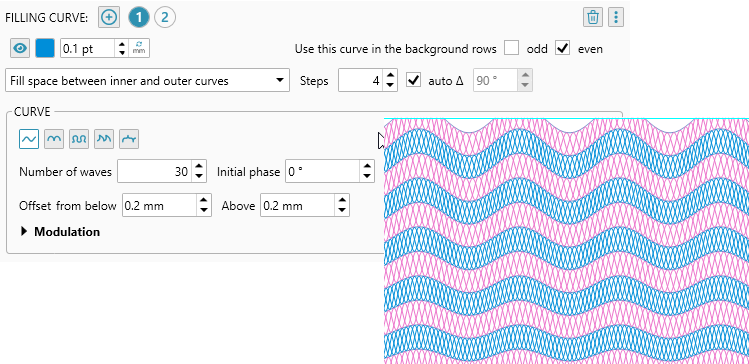
Similar to amplitude, you can control any other parameters of the baseline curve. For example, increasing the number of waves at each step creates a ripple effect across the entire background surface.
Radial background
The logic for constructing baselines for a radial background is similar to that for a transform background. The difference is that for a radial background, one end of the baseline is fixed in the center with a specified offset. Intermediate baselines are created by rotating around this fixed end.
At each step, additional transformations are available for each baseline parameter, allowing you to create nonlinearly changing curves.
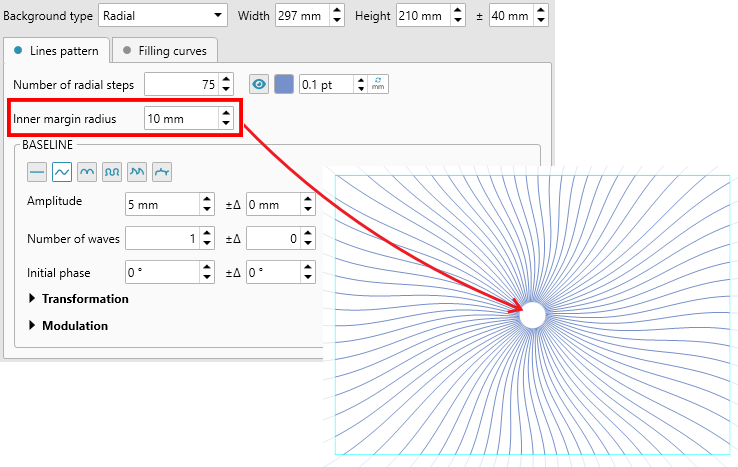
An inner radius is necessary because the design of this type of background will result in a high line density at the center point, which isn't always visually pleasing. Therefore, in such cases, an empty space is left for decorative elements, such as a logo or rosette.
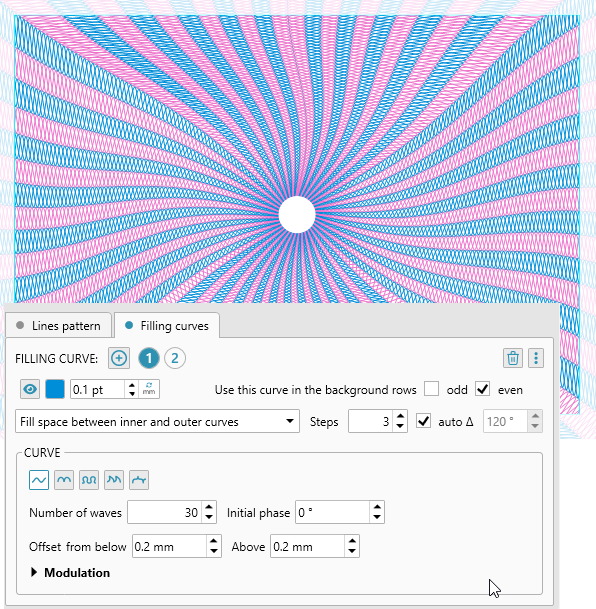
Working with curves that fill the space between baselines is similar to other background types and is described above.
Circular background
This background type is similar in its construction logic to a transformable background; any parameter of the original baseline can be increased or decreased at each step by a specified value. The fundamental difference is that the original baseline is a closed curve—a rectangle, ellipse, polygon, etc.
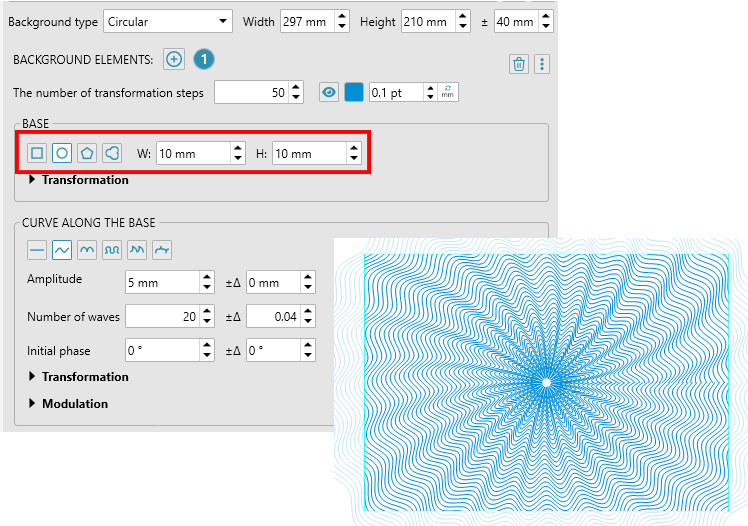
Transforming parameters allows you to create interesting visual effects and nonlinear distortions.
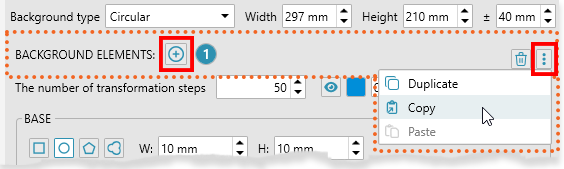
Another feature of circular backgrounds is the absence of fill lines. The baselines themselves fill the background space. There can be up to 10 such background elements based on different baselines. The color and thickness of the lines can be changed.
You can add, delete, and select an element by index in the list. Additionally, the menu under the three-dot button offers additional operations—duplication and copy and paste from memory. This makes it easy to add new elements based on existing ones and transfer them between different presets.
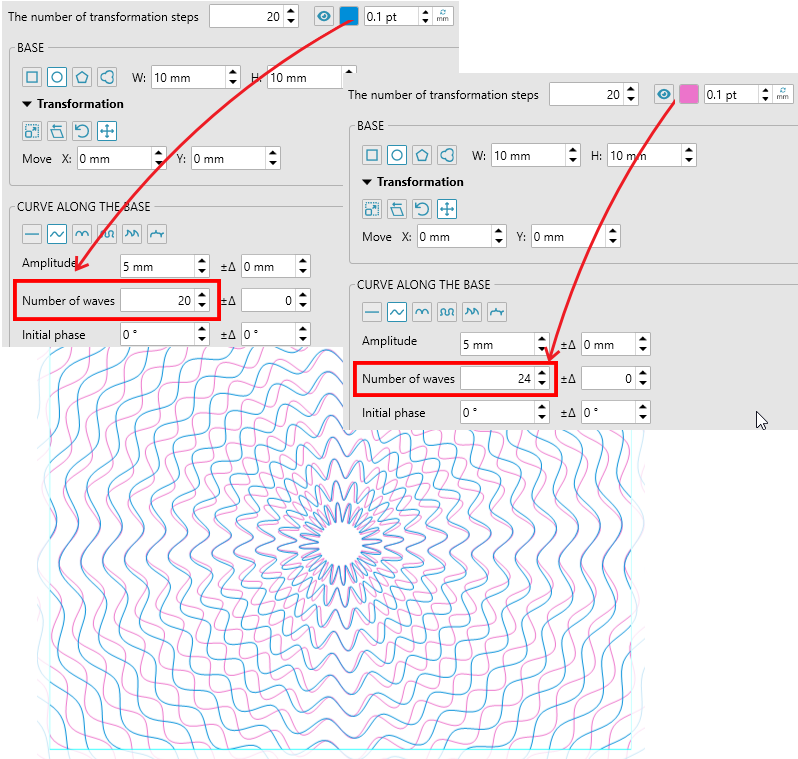
Overlapping lines from multiple elements with different parameters can create beautiful structures and allow you to create unique designer backgrounds.
Rendering a background in CorelDraw
To generate a background in CorelDraw using your customized settings, click the button at the bottom of the plug-in window. The plug-in will create a new document and perform a net rendering.
Rendering is available both in preset mode and with the background editor open. This allows you to interactively change settings and immediately get the final result in CorelDraw for any background.