ReproScripts Security Guilloche border designer plugin for CorelDraw
- design complex borders in minutes
- move layers while maintaining the border structure
- diverse fill and blend curves in layers
- regions of curve density variation within the fill pattern
- render a full rectangular frame of specified dimensions
The Guilloche border designer plugin opens the door to quickly and easily creating guilloche borders for certificates, tickets, and other products. Creating a complex pattern for such a frame without specialized tools is practically impossible due to its labor-intensive nature. Furthermore, the plugin allows you to create complete rectangular frames by easily adjusting their height, width, and thickness, while preserving all design elements.
Plugin window interface
The main plugin window contains a list of presets, initially populated with several example borders 1. You can create your own borders and save them to this list for future use.
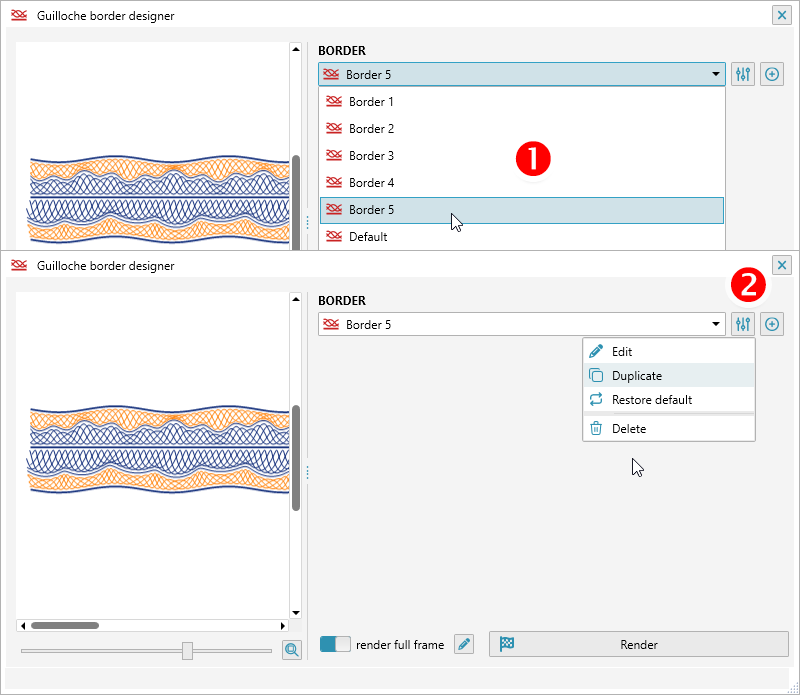
To change the border design from a preset, you can use the Edit/Duplicate commands from the menu to the right of the list 2. You can also immediately create a new border with basic parameters by clicking the button.
Editing a border
After opening a border for editing, you can see a list of the layers it consists of. A number of layer operations are available in this list.
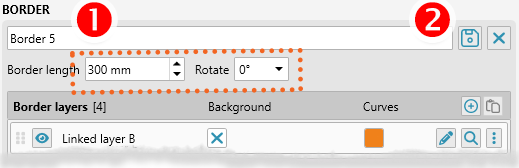
You can specify a new preset name 1 and save your changes, or exit editing mode without saving your current changes 2.
For the border, you must specify the length for which the calculation will be performed. The number of waves specified in the curve parameters will be calculated for the specified length. Additionally, for convenience, you can rotate the border in the viewport by specifying the rotation angle.
The layer list must always contain a root layer, to which all other layers are aligned. The upper and lower boundaries of such a layer are always defined by fixed parameters and are independent of other layers.
Moving a layer
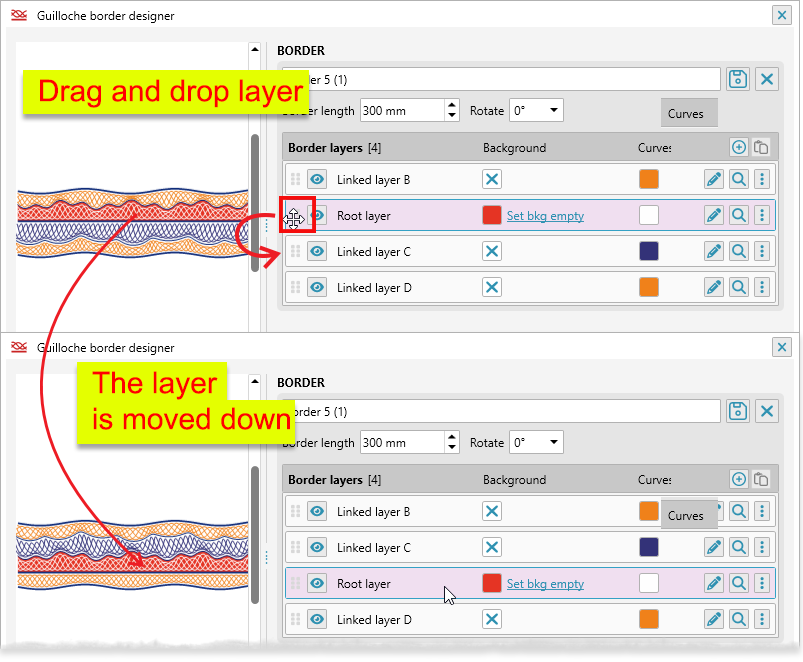
Layers in a border can be moved. To do this, left-click the button with the dots and drag the layer to the desired location. The structure of the entire border will change, and the layer boundaries will be adjusted (provided that the bottom boundary of the layer is snapped to the previous layer).
In our example, the layer below the root layer has moved to the top relative to the root layer, which also changes the orientation of the bottom and top borders. The inner border is always the one closest to the root layer.
Copying and pasting layers
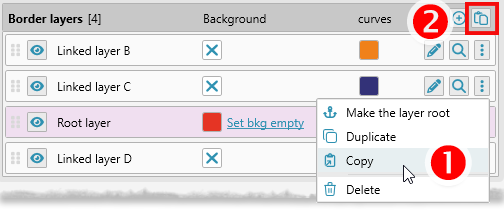
A menu with additional operations is available under the button with three dots for the layer. Specifically, you can copy a layer to memory 1. If a layer is in memory, the paste button 2 in the list header will be active. This way, you can move layers between different rosettes or simply duplicate layers.
Changing colors
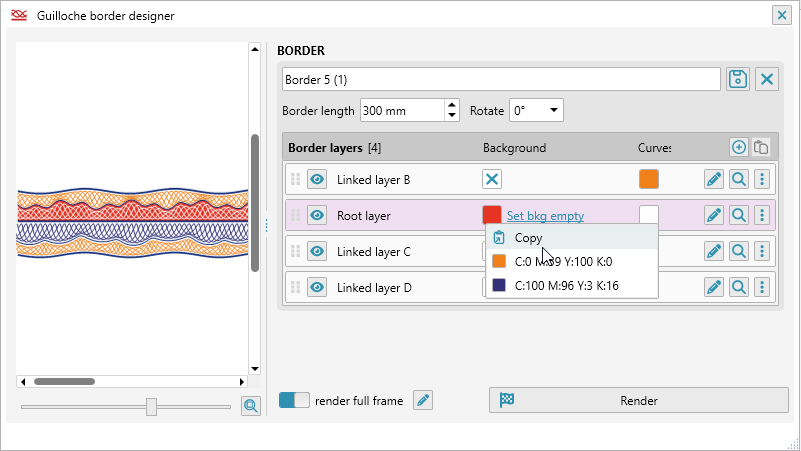
The list displays information about the background color and the color of the fill lines for each layer. You can change the color by clicking on the color square. Right-clicking on a color also opens a context menu from which you can copy the color to memory and paste it elsewhere. You can copy up to five colors to the context menu.
Highlighting a layer
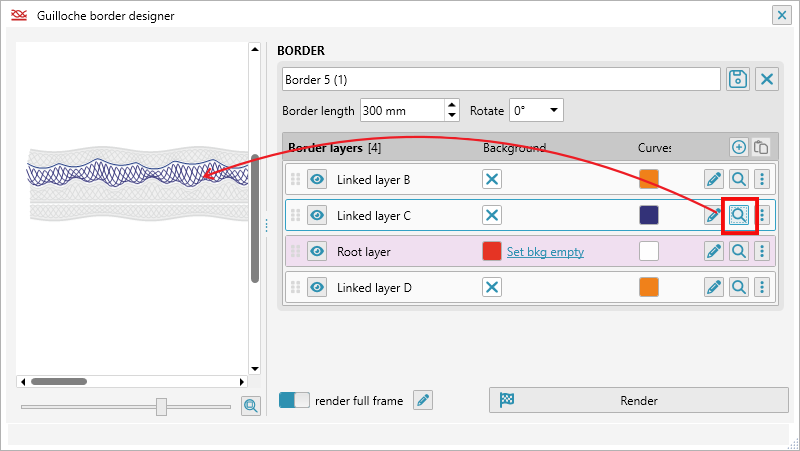
When a border has many layers, it's easy to get lost. To make layer navigation easier, you can use the button. By clicking the button, you can make only one layer active, muting the colors of the others. This will help you understand the position of the selected layer within the border.
Hiding a layer
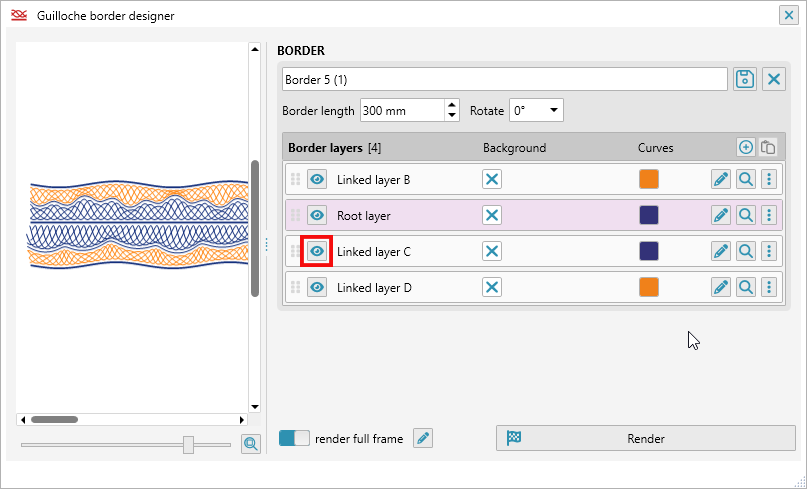
The button with the eye icon controls the layer's visibility. It always participates in the border structure, but if necessary, it can be hidden, leaving only empty space within the border with the boundaries corresponding to that layer.
Other layer operations
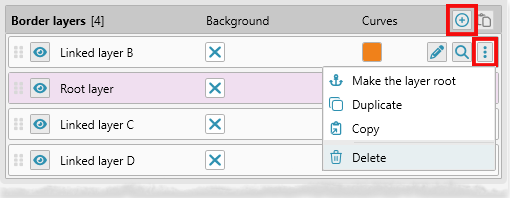
You can add a new layer by clicking the button in the list header. The layer menu also contains duplicate and delete operations.
You can change which layer is the root layer from the layer menu. Changing the root layer will change the logic of layer dependencies and can significantly change the border's appearance.
Layer editing
In addition to a number of operations available in the list, you can open an editor for each layer, where you can set the parameters of the upper and lower baselines and adjust the fill curves for the layer.
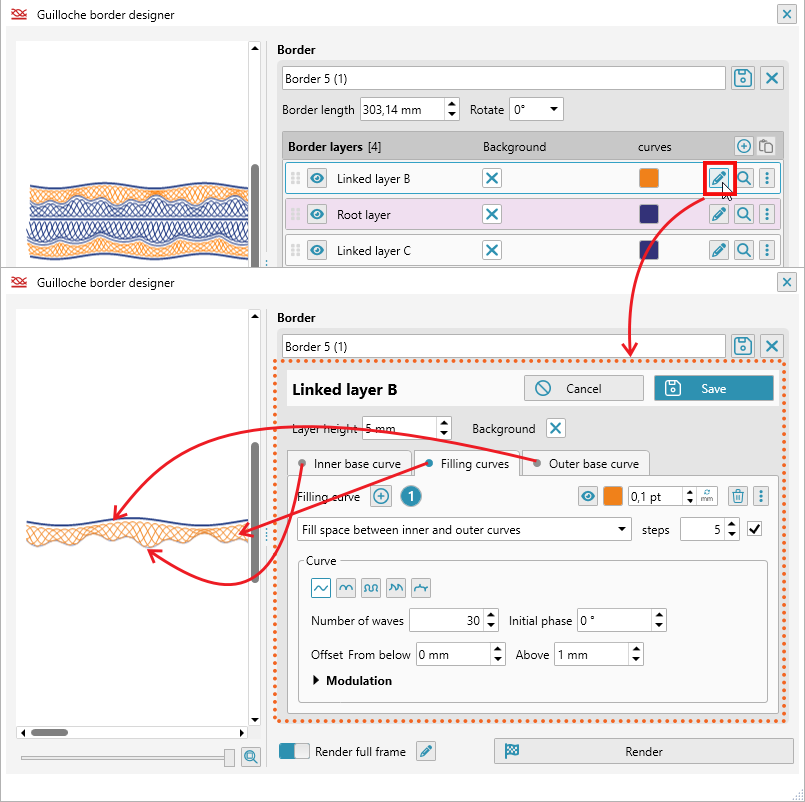
The layer editor contains three tabs, each of which allows you to configure the inner and outer baselines, as well as fill curves. Baselines for each layer can be enabled or hidden in the design; their thickness and color can be set.
Inner Baseline
The inner baseline can be linked to the previous layer or have completely independent, fixed parameters.
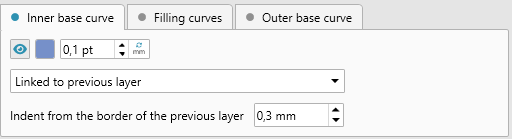
A linked inner baseline will follow the shape of the outer baseline of the previous layer, with the specified offset. This mode is set by default for all new layers and allows you to easily construct borders from consistent, closely spaced layers, as well as move layers within the list while maintaining the integrity of the border structure.
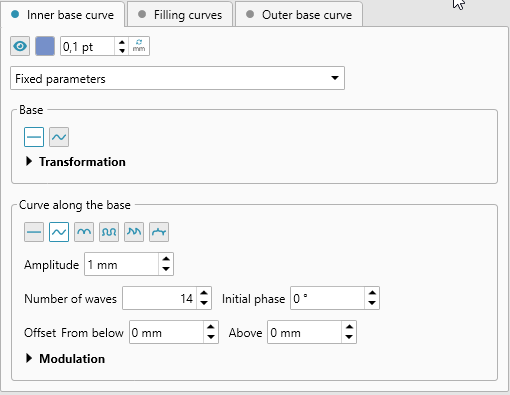
However, you can also set completely independent parameters for the inner baseline, including base dimensions and an additional shape line. The logic and parameters for setting up the internal base in this mode are similar to those of the Math Curve Maker plugin and are described in detail. Fixed parameters can also be added as a design decision, for example, by placing one layer on top of an existing one.
Outer Baseline
The outer baseline always has fixed parameters. The distance between the inner and outer baselines is determined by the layer height.
Other outer baseline parameters are similar to those in the Math Curve Maker plugin.
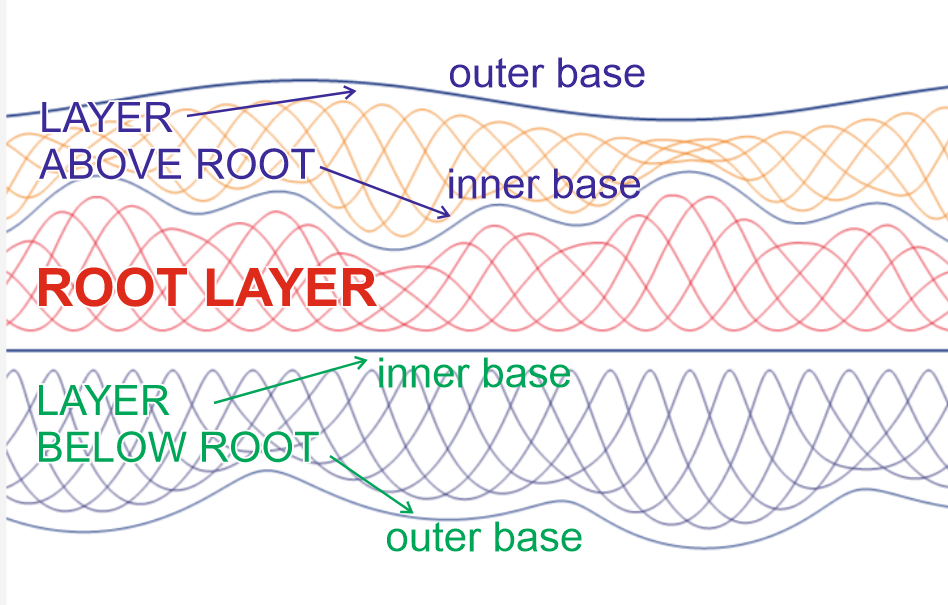
The position of the inner and outer baselines in a border depends on whether the layer is above or below the root layer. The root layer always has fixed parameters for the top and bottom baselines and serves as the reference point for layers.
Inner fill curves
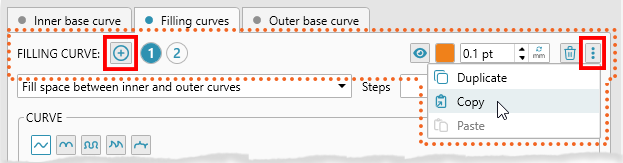
The space between the inner and outer baselines is filled with curves.
You can specify multiple curves with different parameters (including color and thickness) by clicking the button in the curve selector. You can navigate through the curves by clicking the indexes. Curves can be duplicated, copied to and pasted from memory using the curve menu.
The plugin supports two curve modes: fill and blend.
Fill Mode
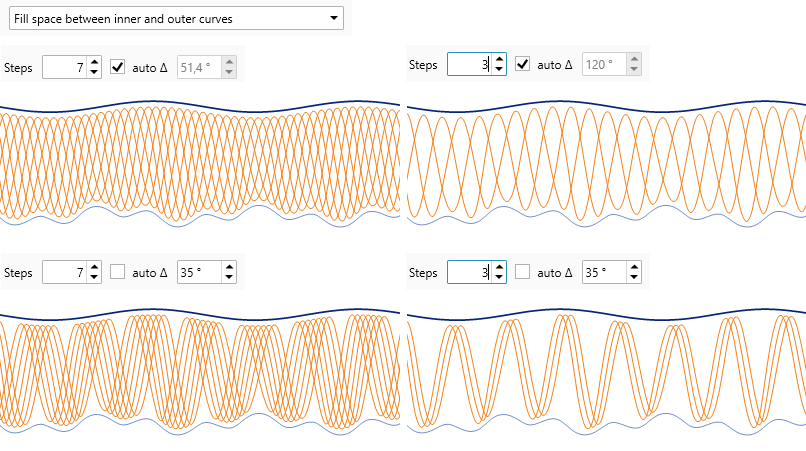
In this mode, the waves of curves will touch the outer and inner baselines, forming a closed curve. The number of steps determines how many curve duplicates will be placed. You can also specify an offset in degrees for each curve. With the automatic value, the offset will be calculated so that all curves evenly fill the entire space. Manual offset values allow you to achieve various visual effects.
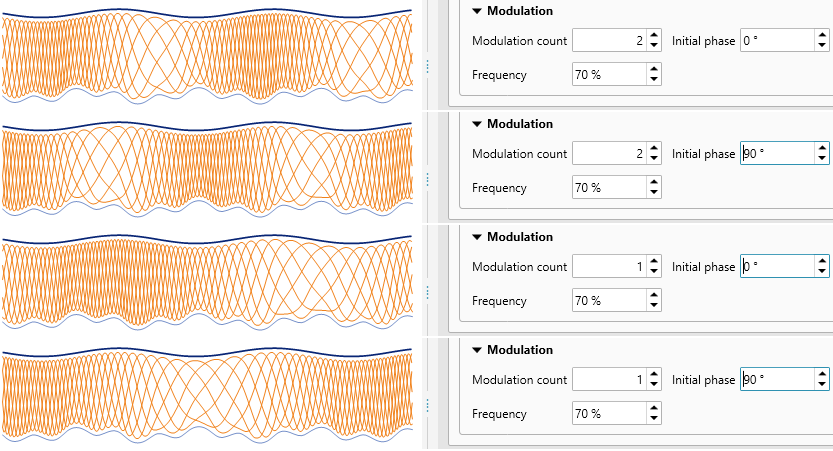
To create zones of higher or lower density, you can use the modulation parameters. Specify how many zones you want to see and set the maximum percentage deviation in wave frequency.
Blend Mode
In this mode, the shape of the fill curve will smoothly change from the inner to the outer base. The number of steps affects the distance between lines. The shape of the fill curve can be further adjusted using parameters. If a line is selected, you will get a uniform morphing of the shape from the lower to the upper base.
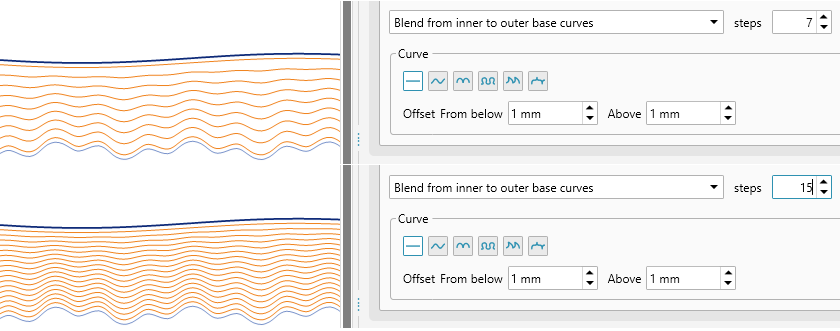
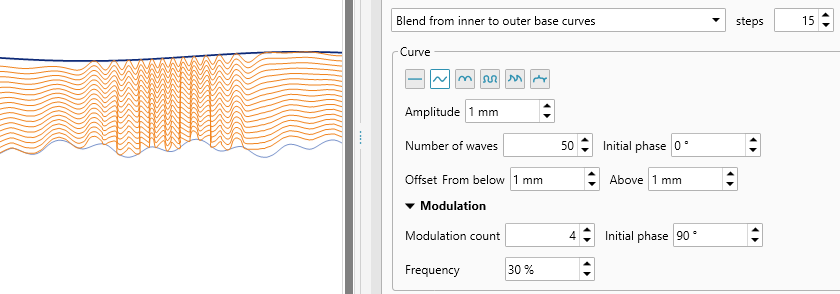
For other curve types, you can specify the parameters described in more detail for the Math Curve Maker plugin, including frequency modulation.
Rendering a border in CorelDraw
To generate a border in CorelDraw with the parameters you've configured, click the button at the bottom of the plug-in window. The plug-in will create a new document and draw the border in it.
Rendering is available both in preset mode and with the editors for the entire border or a specific layer open. This allows you to interactively change the border's parameters and immediately get the final result in CorelDraw, or even render a specific layer (which is open in the editor).
Two rendering modes are available: as a full border or just a section of the border. For a full border, several parameters are available: width, height, and thickness. You can also change the border orientation by rotating it outward 180 degrees. By preparing a single border in the plugin, you can create frames of various sizes and thicknesses in just a few seconds!