ReproScripts Security Math curve maker plugin for CorelDraw
- easily create complex curves
- superimpose curves on open and closed bases
- frequency and amplitude modulation of waves
The Math curve maker plugin allows you to create complex curves based on mathematical formulas popular in guilloche designs. These types of curves are often used in the design of various certificates, tickets, and other products and serve as a counterfeit protection, as it is difficult to accurately reproduce such curves without knowing the exact construction parameters.
The plugin does not require mathematical knowledge to use, but it is important to understand the curves that can be created and the parameters that can be set for each curve.
Plugin window interface
After launching the plugin, the window that opens displays two lists of curve presets 1 and bases on which these curves can be created 2. You can set the color and thickness of the curve and base; the base can be hidden if needed, as it may not be needed for rendering.
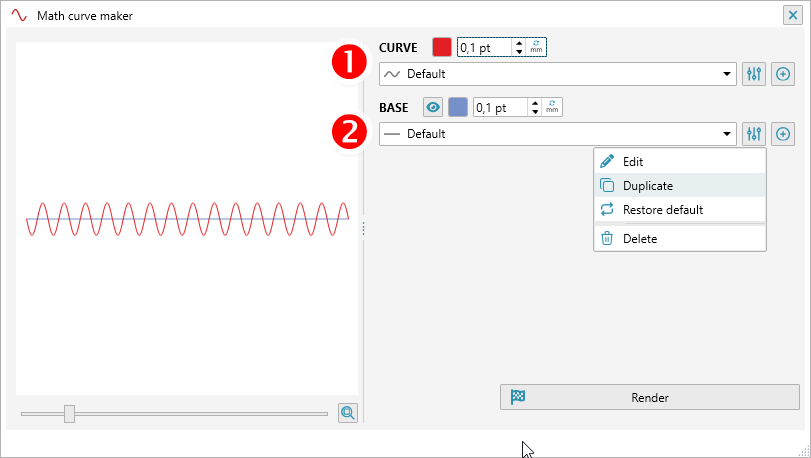
Each list contains several curve types, which can be selected from the list 3. You can also create your own presets by pressing the button 5, or by duplicating or opening a curve for editing from the preset list menu 4.
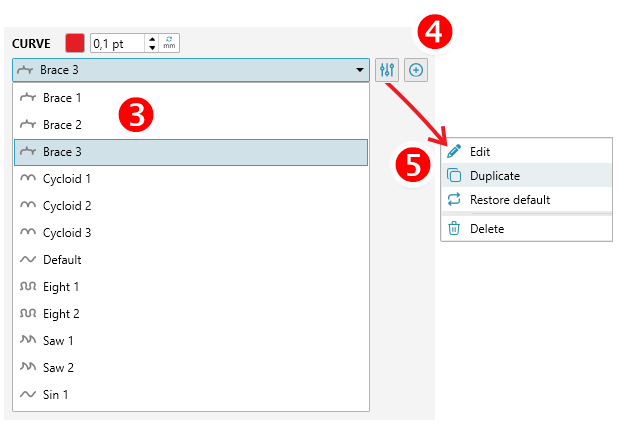
The default curve can only be duplicated and saved as a new preset. Other curves can be edited, deleted, or duplicated. Also, if presets installed with the plugin were deleted or modified, they can be restored (other existing presets will not be modified or deleted).
Editing curves
You can open the curve editor by selecting Edit or Duplicate in the preset list menu or by pressing the button.
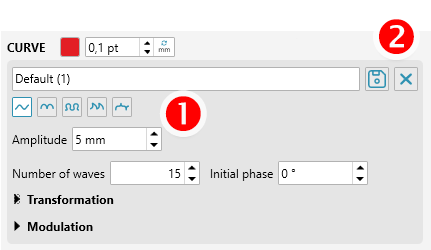
The editor allows you to select the curve shape 1 and a number of parameters. You can give the edited curve a new name and save it in the preset list 2, or simply close the editor and return to the list.
Curve shape
The plugin supports five curve types, the appearance of which can vary significantly depending on the parameters set.
Sin

Cycloid


Eight


Saw

Brace


Curve Parameters
Curve parameters significantly affect its appearance and allow for a wide variety of interesting variations.
- Amplitude is the height of the curve's waveform relative to the baseline (up and down).
- Horizontal amplitude is a parameter applicable to all curves except sine and allows you to vary the shape of each wave horizontally. This parameter can often radically change the curve's appearance.
- Number of waves — this parameter specifies how many waves the curve should contain over the total baseline length.
- Initial phase allows you to shift the starting point of the curve.
Transformation
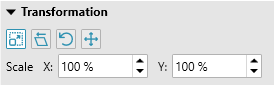
These parameters allow you to apply a number of transformations to the curve, including scaling, skew, rotation, and shear. This allows you to fine-tune the shape and position of the curve.
Modulation
This set of parameters allows you to increase or decrease the frequency or amplitude of the curve's waves along the entire baseline length.
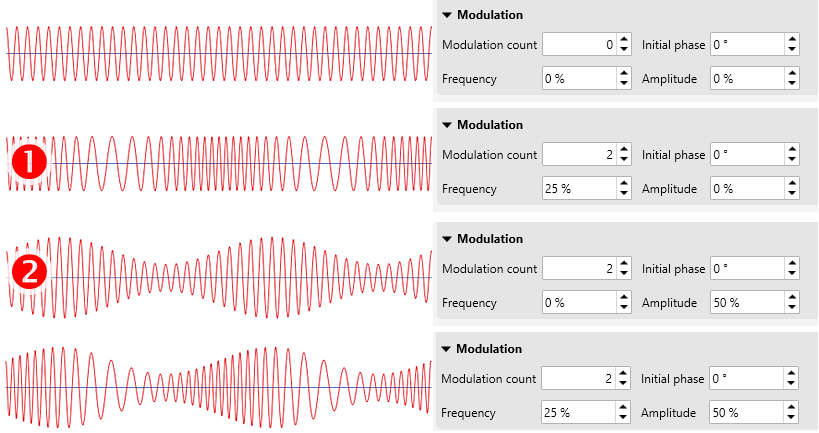
For example, without modulation, a sine wave has a uniform wave distribution. Adding two frequency modulations 1 will create two sections of wider waves on the curve. Amplitude modulation 2 will create two sections of waves with reduced pitch. Both modulations can be combined, and the initial phase can be used to shift the position of the modulated sections along the curve.
Modulation changes the specified frequency/amplitude of the waves a specified number of times, decreasing and increasing the base value by a specified percentage.
Baseline
The generated curve, the parameters of which are described above, is placed along the baseline. The baseline can also have a variety of shapes, which are defined by a number of parameters and can be saved in the preset list.
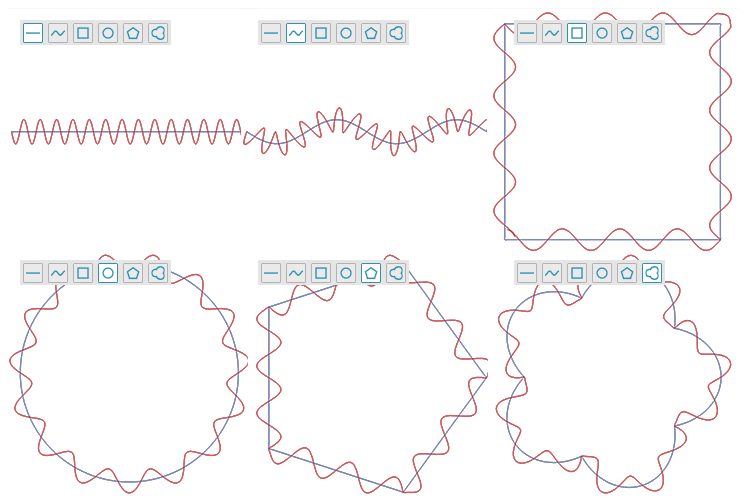
Baseline shape and parameters
The baseline can be open (straight line or sine wave), or closed (rectangle, ellipse, polygon, and flower). For an open line, its overall length is specified, while for closed shapes, the height and width are specified.
All baselines can be further transformed, including scaling, rotation, skew, and shear. Additional modulation parameters are available for the sine wave. For the polygon and flower, you can also specify a concavity value—this allows you to create stars and similar shapes and place curves along them.
Rendering the curve in CorelDraw
To generate a curve in CorelDraw with the parameters you've set, click the button 1 at the bottom of the plug-in window. The plug-in will draw curves with the specified parameters in the currently active document or create a new document if no document is active.
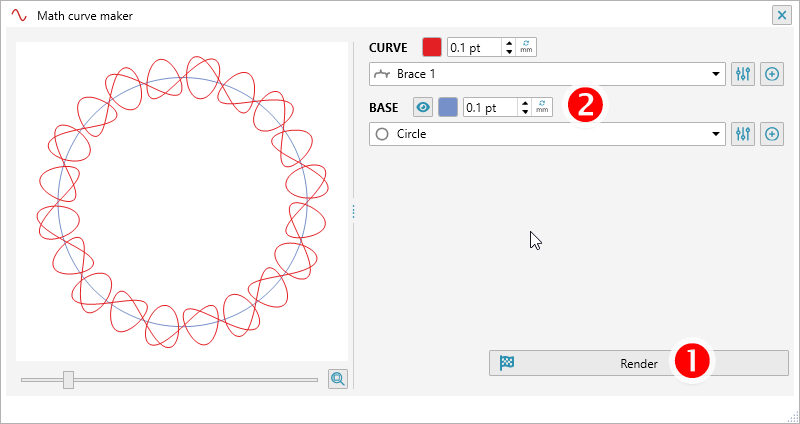
Rendering is available both in preset mode and when the curve or baseline editors are open. This allows you to interactively change curve parameters and immediately see the final result in CorelDraw. You can select the color and thickness for the curve and baseline 2. You can also turn off the baseline visibility if you don't need to render it.