
ReproScripts Core Replace fonts plugin for CorelDraw
- search and replace fonts in the whole document
- change only the font family while preserving size, weight and style
- deep character-by-character analysis of text objects
- undo all replacements as a single operation
CorelDraw provides many tools for editing text, but replacing fonts across a complete document can still require a great deal of manual work. The Replace fonts plugin performs this task for selected objects, the current page, or all pages. It analyzes text at character level, including text inside groups and PowerClips, and combines all replacements into one operation that can be reversed through Edit Undo.
List of fonts used in the document
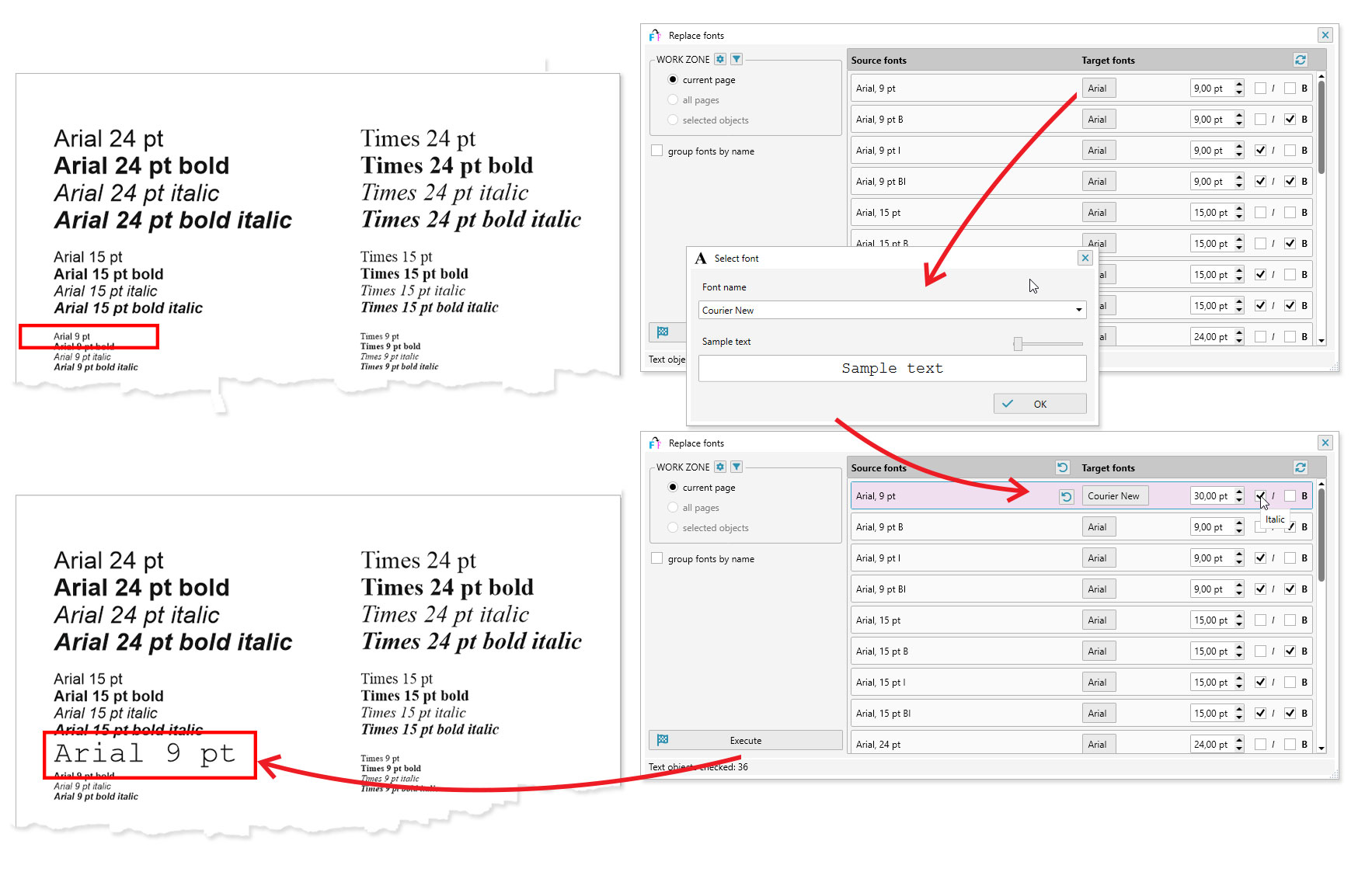
When the plugin starts, it analyzes the selected work zone and compiles a list of fonts used in text objects. Character-level analysis ensures that formatting changes within a single text object are included.
Initially, list entries are distinguished by font family, size, weight and style. The value in square brackets shows how many text objects use that font combination, and the size is displayed in points. Bold entries are marked with B and italic entries with I. The same details are shown for both source and target fonts.
Grouping fonts
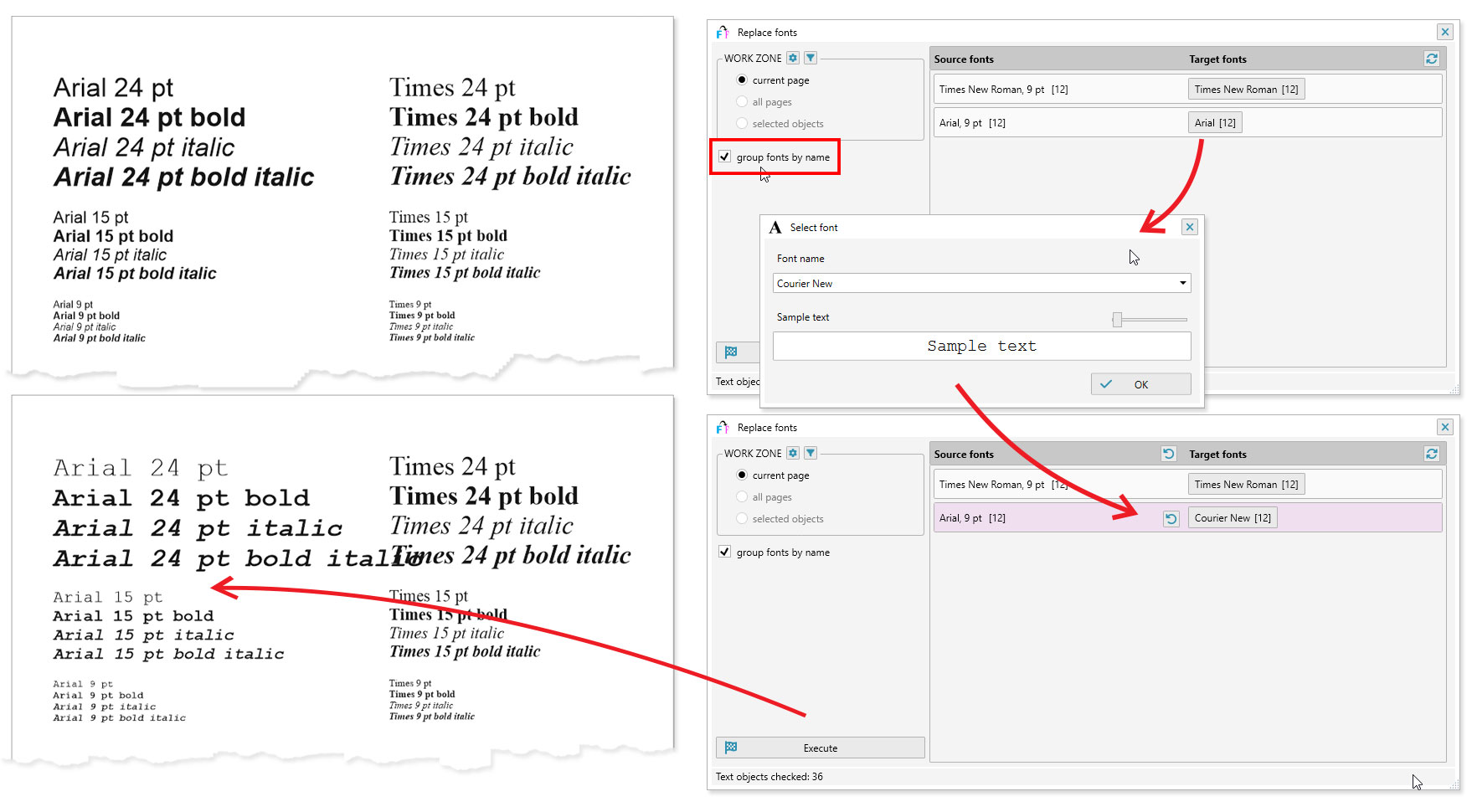
It is often more convenient to group fonts by family. Fonts with the same family but different sizes, weights or styles are then represented by a single bold row.
Grouping lets you replace the font family throughout the work zone while preserving each character's size, weight and style. This changes the overall typeface without flattening the document's typographic hierarchy.
Selecting a new font
To choose a replacement, click the button in the target-font column. The dialog lets you select a font and its parameters; for a grouped entry, only the font family can be changed. A preview is available for most fonts. Rows with a changed target font are displayed in red.
Copy and paste
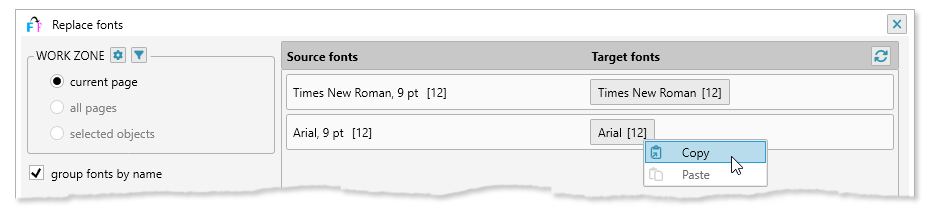
Right-click a target font to copy or paste its settings. After copying a font, you can assign it to another compatible row without reopening the font-selection dialog.
Reset changed fonts
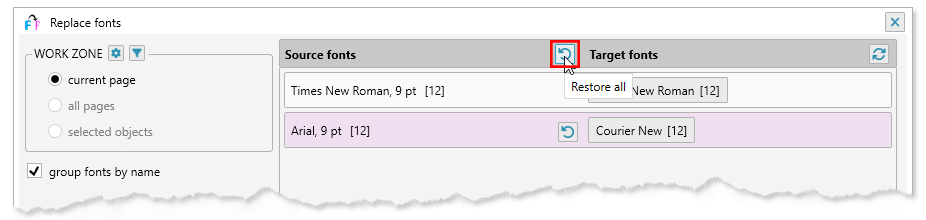
To cancel a replacement, click the original font in that row. The source settings are restored and the row returns to black. When any rows have been changed, the "Restore" command in the list header resets all of them at once.
Objects included in processing
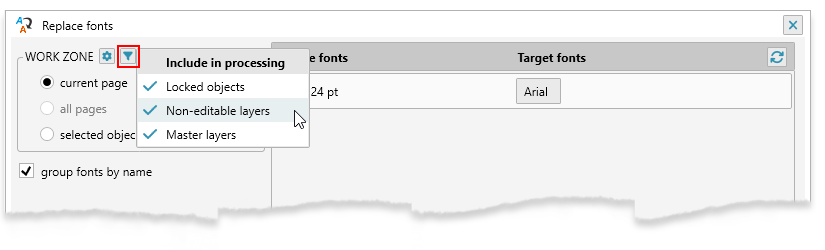
The filter button next to the work-zone settings controls which protected or shared objects are included. All three options are enabled by default and saved separately for this plugin. Changing an option immediately rescans the selected work zone and updates the font list and object counts.
Locked objects includes locked text shapes. When a matching font must be replaced, the plugin temporarily unlocks the object and restores its locked state afterwards. Disable this option when protected text must remain unchanged.
Non-editable layers includes text on layers that cannot currently be edited. Required layers are temporarily made editable and then restored. Master layers includes text placed on master layers; disable it when only page-specific text should be processed.