
ReproScripts Core Tune outlines plugin for CorelDraw
- change outline thickness or remove outlines
- process matching outlines throughout the work zone
- set a minimum outline thickness
- undo all changes as a single operation
Designers and prepress specialists often need to change outline parameters for many objects at once. The Tune outlines plugin handles selected objects, shapes on the current page, or all pages in the document. It also searches inside groups and PowerClips at any nesting level. Changes are combined into one operation and can be reversed through Edit Undo.
Changing outline parameters
When the plugin starts, it analyzes the active document. Objects in the selected work zone are grouped by outline thickness, and the resulting values are added to the main window. Each row shows the original thickness and the number of matching objects. Enter a target value in the field on the right to change the outlines represented by that row.
Reset changed items
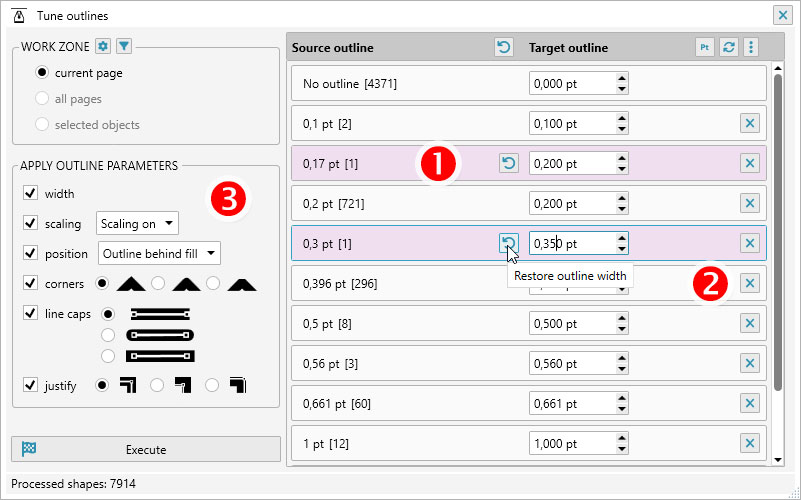
Rows with a changed target thickness are highlighted with a pink background. 1 To cancel a change before processing, click the original value on the left. It will be copied back to the target field.
Empty outline
To remove an outline completely, enter 0 as the target thickness or click the cross at the end of the row. 2 When processing starts, matching objects will be changed to have no outline.
Outline pen options
The checkboxes on the left side of the main window 3 specify which outline properties will be changed. Enabling an option displays its available values on the right. At least one option must be enabled. The plugin can change outline thickness, scaling with the object, placement in front of or behind the fill, corner joins, line caps, and outline justification.
List menu
The outline list can contain many rows, so commands that affect the entire list are available from its header menu.
Thickness units
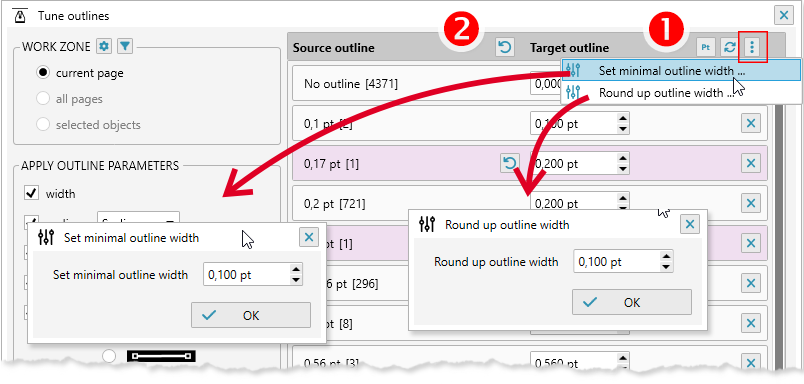
By default, outline thickness is displayed in points. 1 Click the active unit in the list header to switch between points and the plugin's current units (millimeters or inches). The selected unit is saved for future sessions.
Restore all
When the list contains modified target values, the "Restore all" command resets every row to its original value. 2
Setting thickness value
Target thicknesses can be adjusted for all rows at once. Two commands are available: setting a minimum thickness and rounding values.
Setting the minimum thickness
Documents often contain Hairline outlines that may print too thin. Use the menu command to specify a minimum threshold. The value is assigned to every non-zero row whose current thickness is below that threshold.
Rounding of thickness
If a document contains many slightly different outline thicknesses, use the rounding dialog to normalize their target values. This is especially useful for imported or traced artwork and makes the document easier to maintain.
Objects included in processing
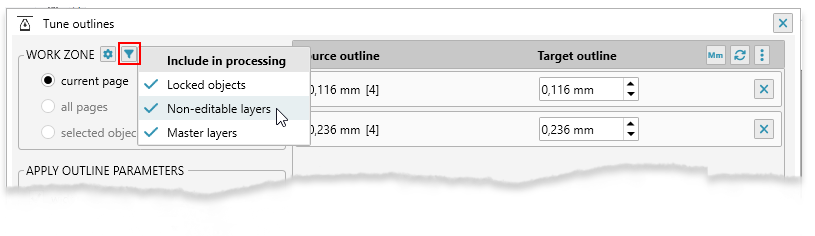
The filter button next to the work-zone settings controls which protected or shared objects are included. All three options are enabled by default and saved separately for this plugin. Changing an option immediately rescans the selected work zone and updates the outline list and object counts.
Locked objects includes shapes locked in CorelDraw. The plugin temporarily unlocks matching objects, changes their outlines, and restores their locked state. Disable this option when protected objects must remain untouched.
Non-editable layers includes objects on layers that cannot currently be edited. Required layers are temporarily made editable and then restored. Master layers includes objects placed on master layers; disable it when only page-specific artwork should be changed.