
ReproScripts Info Inks coverage plugin for CorelDraw
- calculation of ink coverage for a page, the entire document, or selected objects
- estimation of ink consumption and cost for offset, digital, and flexographic printing
- generation of detailed PDF reports with custom company information
- export data to XML for use in an automated workflow

The Inks coverage plugin included in the ReproScripts Info library analyzes a CorelDraw document and calculates the coverage of every process and spot ink. It can report coverage only, or combine the measured values with a configured printing press, substrate correction, and print run to estimate ink consumption and cost.
 WATCH VIDEO: Testing the accuracy of the ink coverage calculation plugin

Calculating ink coverage
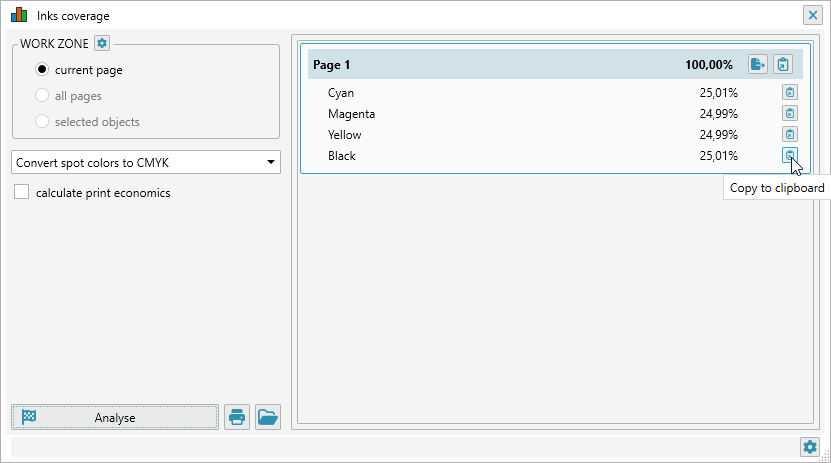
An open document is required. In Work zone, choose whether to analyze the current page, all pages, or selected objects, then click . The result is organized by document and page and shows the total coverage together with a separate percentage for every detected ink.
The buttons beside a document, page, or ink row let you export the corresponding data to XML or copy its values to the clipboard. This makes it possible to use the complete result or only the required part of it.
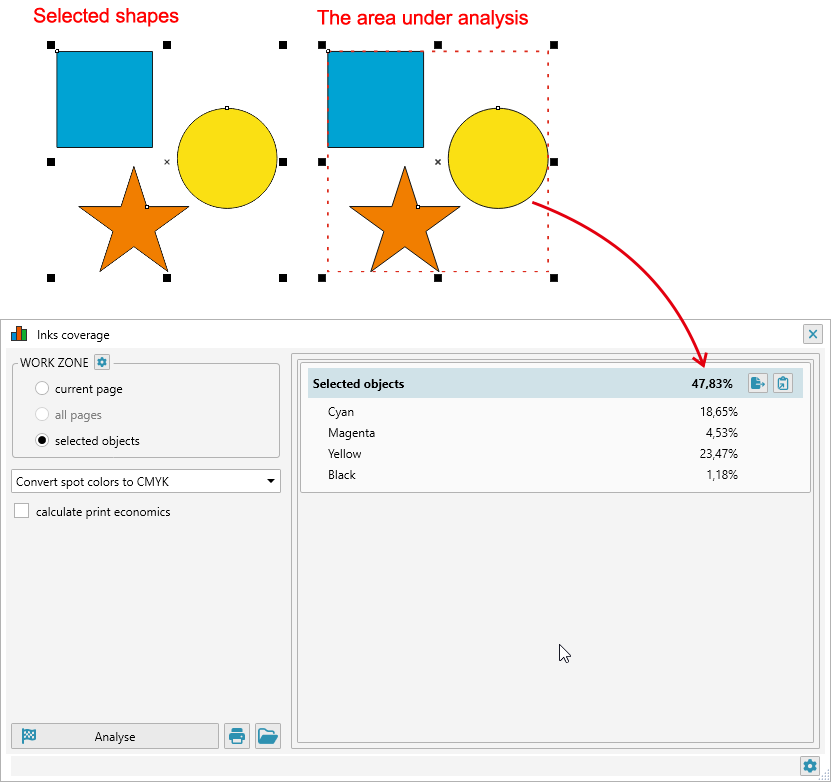
If selected objects is used, the calculation area is the selection bounding rectangle. The plugin treats that rectangle as a separate page, so empty space between and around the selected shapes remains part of the measured area.
Color conversion modes
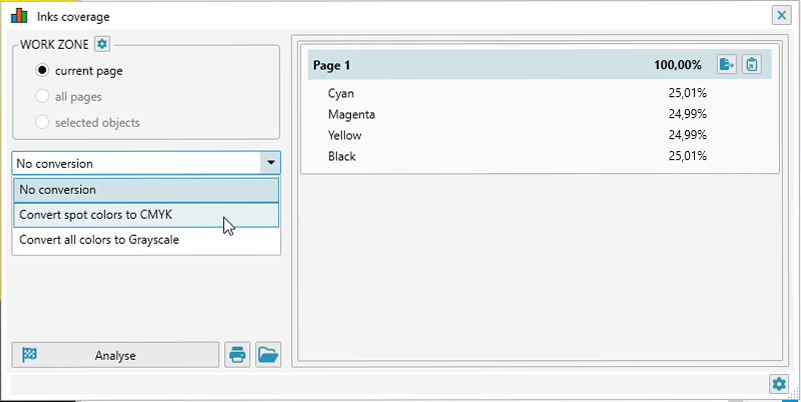
The conversion list controls how colors are separated for the analysis only. It does not modify objects in the source CorelDraw document.
- No conversion — keeps process and spot inks separate. Use this mode when the result must reflect the actual separations in the document.
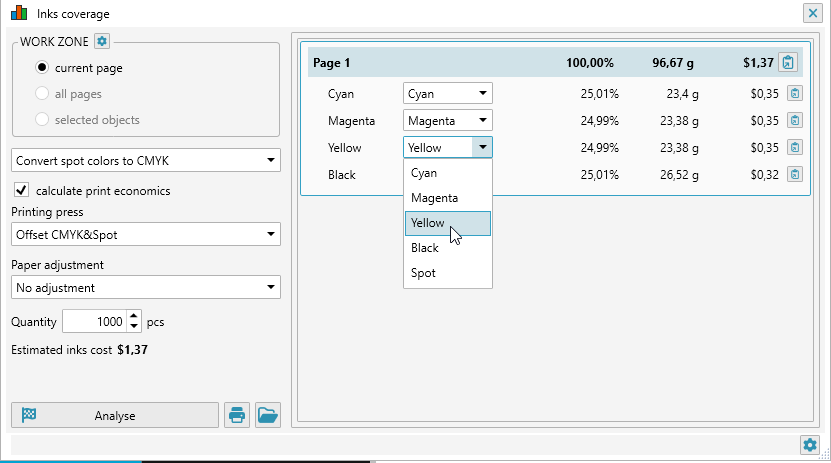
- Convert spot colors to CMYK — converts spot colors to their CMYK equivalents before measuring coverage. Spot plates disappear from the result and their contribution is added to the Cyan, Magenta, Yellow, and Black values.
- Convert all colors to Grayscale — converts process and spot colors to grayscale and returns the resulting Black coverage. This is useful for estimating monochrome output.
Print economics
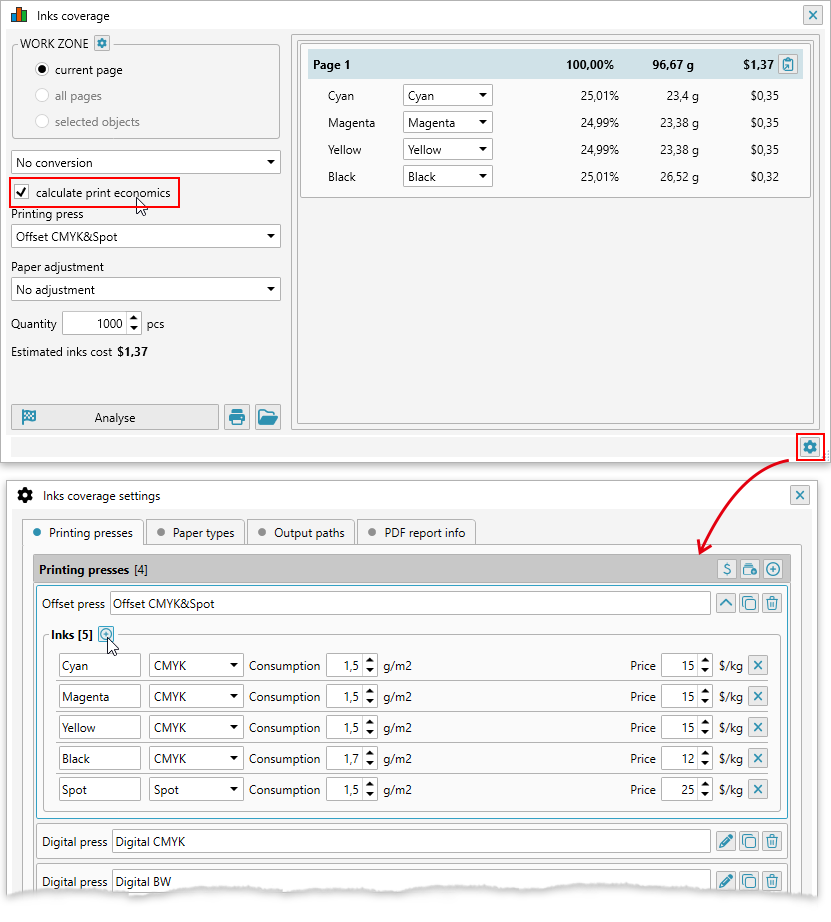
Select calculate print economics to supplement coverage values with an estimate for the planned print run. The calculation uses the analyzed page or selection area, coverage of each ink, selected printing press, paper correction, and quantity.
- Printing press selects the set of inks and technology-specific consumption parameters used in the calculation.
- Paper adjustment applies the correction factor configured for the substrate. No adjustment uses a factor of 1 and leaves the base consumption unchanged.
- Quantity is the number of copies in the print run and must be at least one.
- Estimated inks cost is the total for all analyzed pages and mapped inks. The result list also shows values for each page and each ink.
For offset and flexographic presses, the plugin calculates ink weight and then multiplies it by the configured price per kilogram. For digital presses, it calculates the consumed share of each cartridge from its rated yield, reference format and coverage, and then applies the cartridge price. Because digital supplies are cartridge-based, the result shows cost without an ink-weight column.
Configuring presses, inks, and paper
Open the plugin settings with the gear button . The Printing presses tab contains reusable press profiles. You can add, duplicate, rename, edit, or delete a profile, restore the standard profiles, and set the currency symbol used for all cost values.
When a press is added, first choose its technology. Each ink or cartridge in the profile has a name and a type: CMYK, Spot, or Special. The remaining parameters depend on the technology:
- Offset — consumption in grams per square meter at 100% coverage and price per kilogram.
- Digital — cartridge yield in sheets, the reference sheet format (A4, A3, or SRA3), the coverage percentage at which that yield is specified, and cartridge price.
- Flexo — anilox volume in BCM and price per kilogram. The plugin uses the anilox volume together with the measured area and coverage to estimate transferred ink.
Use the Paper types tab to create substrate adjustments. Every entry has a name and a correction factor that multiplies the calculated consumption and cost. For example, a factor of 1.15 adds 15% to the estimate. This is suitable for compensating for substrate absorbency, production waste, or another known shop-specific difference.
Mapping document inks to press inks
In economics mode, every ink detected in the document is mapped to an ink or cartridge of the selected press. By default, the plugin first determines whether the document ink is CMYK or spot, then looks for an ink of the same type and a matching name. If there is no exact name match, it tries a partial match and then the first compatible ink. Standard Cyan, Magenta, Yellow, and Black separations are therefore assigned automatically; spot colors are matched to a spot entry when possible.
The selector next to each result ink lets you override the automatic mapping. A changed mapping immediately recalculates the consumption and cost while leaving the measured coverage unchanged. This is useful when several spot or special inks have different prices or consumption characteristics. If the selected press has no suitable ink, the affected amount and total cost are shown as unknown until a mapping is selected or the press profile is updated.
PDF report
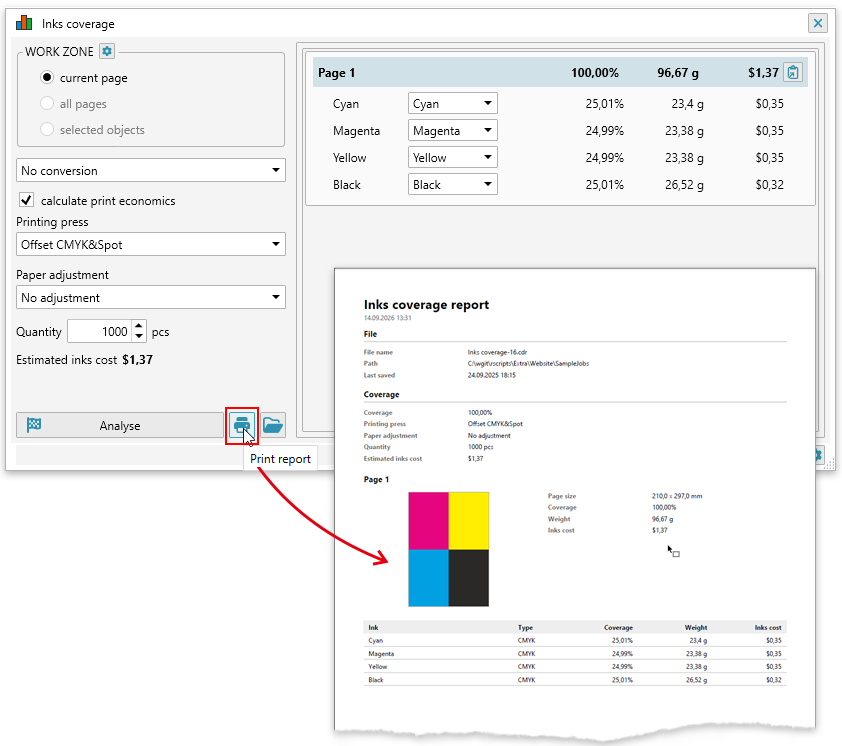
After the analysis, click to generate and open a PDF report. Reports are available in both modes: without economics they contain coverage data, and with economics they also include the selected press, paper adjustment, quantity, mapped ink types, ink weight where applicable, and estimated costs.
The report includes the source file name, path and last saved date, overall coverage, a preview and size of every analyzed page or selection, and a detailed table of ink coverage. A multi-page report also includes a document summary. Files are stored in the folder specified on the Output paths tab in the plugin settings; by default this is Documents > ReproScripts > Inks Coverage Reports. The folder button beside the print button opens this location.
On the PDF report info tab, you can specify a logo, company name, website, contact person, phone, email, address, and notes. Saved details are inserted into every subsequently generated report, allowing the PDF to be used as a consistent customer-facing or internal production document.
Export to XML
The plugin can export coverage data to XML for further processing in an automated workflow. Specify the destination on the Output paths tab in settings, then click the button for the required document, page, or ink row. After export, the plugin opens the destination folder and selects the generated file. The filename is based on the CorelDraw document name.
XML schema
Download the XML export schema used by the Inks coverage plugin: download